Geoblocking on OnlyFans: How to Block Specific Countries or States (Full Guide)
Geoblocking is one of the simplest privacy wins on OnlyFans, but it’s also one of the most misunderstood. . . If your biggest fear is “What if someone from m...
Geoblocking is one of the simplest privacy wins on OnlyFans, but it’s also one of the most misunderstood.
If your biggest fear is “What if someone from my hometown finds me?”, blocking countries or even specific US states can reduce that risk a lot. It’s not a magic invisibility cloak, though. To actually feel safe, you want geoblocking plus a few other practical protections.
This guide walks you through how to block specific countries or states on OnlyFans, how to test it, and what geoblocking does (and does not) protect you from.
What geoblocking on OnlyFans really does (and what it doesn’t)
Geoblocking (also called “country restrictions” or “location blocking”) is a setting that prevents people in certain locations from viewing your profile and content.
That usually helps with:
- Reducing the chance friends, family, coworkers, or classmates stumble onto your page.
- Avoiding certain regions you don’t want attention from.
- Creating a safer feeling when you’re promoting publicly.
But it’s important to be honest about the limits.
Geoblocking is risk reduction, not a guarantee
Geoblocking can fail or be bypassed in real life because:
- People can travel. Someone from your city might subscribe while traveling elsewhere.
- Some users use VPNs. You shouldn’t rely on geoblocking alone.
- Leaks exist. If content gets reposted off-platform, geoblocking won’t protect you there.
- Your promo can identify you. If you post the same photos on personal socials, or reuse usernames, you can still be recognized.
If anonymity is a big priority for you, pair this guide with:
- How to secretly promote your OnlyFans (without friends or family finding out)
- How to make money on OnlyFans without showing your face & stay anonymous
A simple decision framework: should you geoblock, and what should you block?
Before you start blocking half the map, take 2 minutes and make a smart plan.
Step 1: Define your “privacy risk zones”
Most creators fall into one of these:
- High risk: your hometown, your current city, your university town, places where you have family.
- Medium risk: your broader state/region (for US creators), neighboring countries (for EU/UK creators), places where your job network is.
- Low risk: everywhere else.
Step 2: Don’t block your best customer base by accident
If you already know where your fans come from (or where you’re targeting), be careful. Blocking high-spending regions can reduce conversions.
If you track your traffic sources, geoblocking decisions get easier. (If you haven’t set up tracking yet, read OnlyFans tracking links guide.)
Quick comparison table (privacy vs growth)
| Option | What it protects | What it doesn’t protect | Best for |
|---|---|---|---|
| Block countries | Reduces discovery from those countries | VPNs, travel, leaks, people who already saved your link | Creators who want broad privacy protection (family abroad, specific countries) |
| Block US states | Reduces discovery from selected states | VPNs, travel, leaks, out-of-state friends | US creators who want “no locals” protection |
| Block individual users | Stops a specific account | Alt accounts, leaks, screenshots | You’ve identified a real person or suspicious subscriber |
| Strong anonymity setup (separate persona + promo hygiene) | Prevents many “recognition paths” | Leaks can still happen | Creators who want long-term safety, especially no-face creators |
How to block countries on OnlyFans (step-by-step)
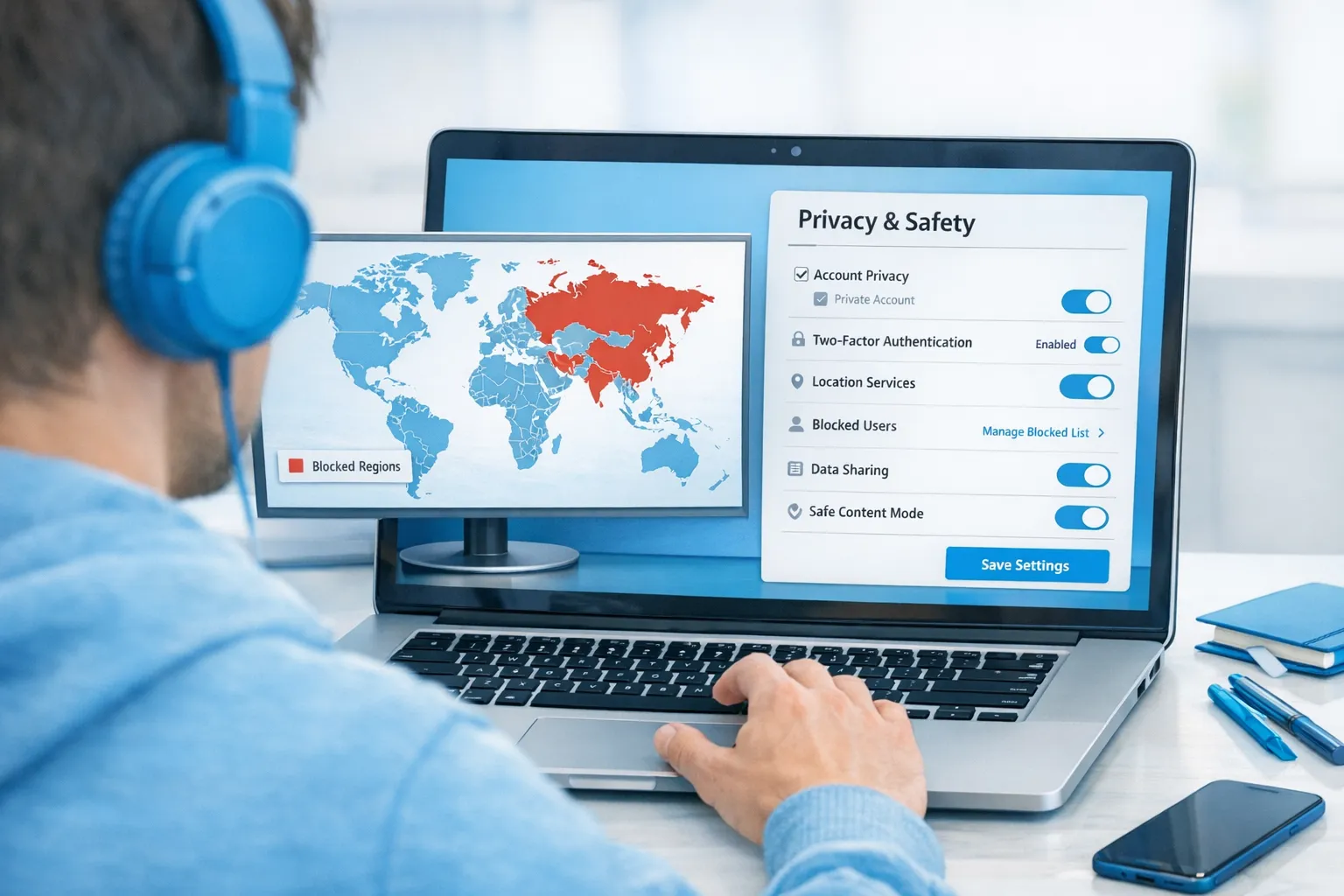
OnlyFans updates its interface occasionally, so menu names can shift. The goal is the same: find “Blocked Countries” (or “Country Restrictions”) inside your account settings, usually under privacy/safety. If anything looks different, check OnlyFans’ official help/docs because policies and UI can change.
Step-by-step (most common path)
- Log into OnlyFans on a secure device you control (ideally your own laptop).
- Go to Settings.
- Look for a section labeled Privacy and Safety (or similar).
- Find Blocked Countries / Country Restrictions.
- Search for and select the countries you want to block.
- Save your changes.
Which countries should you block?
If your goal is “protect me from being recognized,” start here:
- Your home country (if you’re comfortable relying on international traffic only).
- Countries where your family lives.
- Countries where your employer network or professional network is strongest.
If your goal is “block harassment,” consider:
- Countries/time zones where you repeatedly get aggressive messages (track patterns).
Important: If you block too aggressively, you can accidentally cut off real fans. If you’re not sure, start with the most sensitive locations first (home country, home region) and expand only if you still feel exposed.
How to block specific US states on OnlyFans
Some creators see an option to block US states (often inside the same privacy area as country restrictions). Availability can vary based on interface changes, account type, and region.
Step-by-step (if the option appears)
- Go to Settings.
- Open Privacy and Safety.
- Look for Blocked States / State Restrictions.
- Select the states you want to block (usually your home state and nearby states).
- Save.
A practical “no-locals” state block strategy
If you’re US-based and your goal is to reduce local discovery, a balanced strategy is:
- Block your home state.
- Block the states where close family lives.
- Consider blocking neighboring states if your city is close to state borders.
Try not to block the entire country unless you have a strong reason. US-based creators often rely heavily on US traffic.
How to verify your geoblocking is actually working
Creators often assume it’s on, and then panic later because a friend says “I saw you.” Testing helps.
Here are safer ways to check without creating drama:
- Log out and view your page in an incognito/private window. This doesn’t test geography, but it confirms visibility differences between logged-in and logged-out.
- Ask a trusted online friend in a blocked region to check your link and tell you what they see.
- Check after updates. After you change usernames, switch account types, or update settings, re-check.
Avoid “testing” by telling random subscribers to use workarounds. If you block a region for privacy, treat it like a boundary.
Common mistakes that still get creators “found” (even with geoblocking)
Geoblocking reduces accidental discovery, but most doxxing-style situations come from identity breadcrumbs.
1) Reusing usernames across platforms
If your OnlyFans name matches your Instagram, TikTok, gaming handles, Etsy shop, or even a Reddit account from years ago, you’re easier to connect.
2) Posting your face in promo but trying to be anonymous on OnlyFans
Fans don’t need OnlyFans location access to recognize you. If your goal is anonymity, your promo has to match that.
3) Metadata and “invisible” photo details
Some files include metadata (like location or device info). It’s not always present, and it’s not always identifying, but it’s still smart to export content in a privacy-safe way.
4) Showing your real-life environment
Distinctive apartment views, street signs, unique tattoos, gym logos, work uniforms, and car plates are common “recognition triggers.”
If you want a more complete privacy checklist, the “secret promotion” guide goes deeper:
Add the protections geoblocking can’t cover
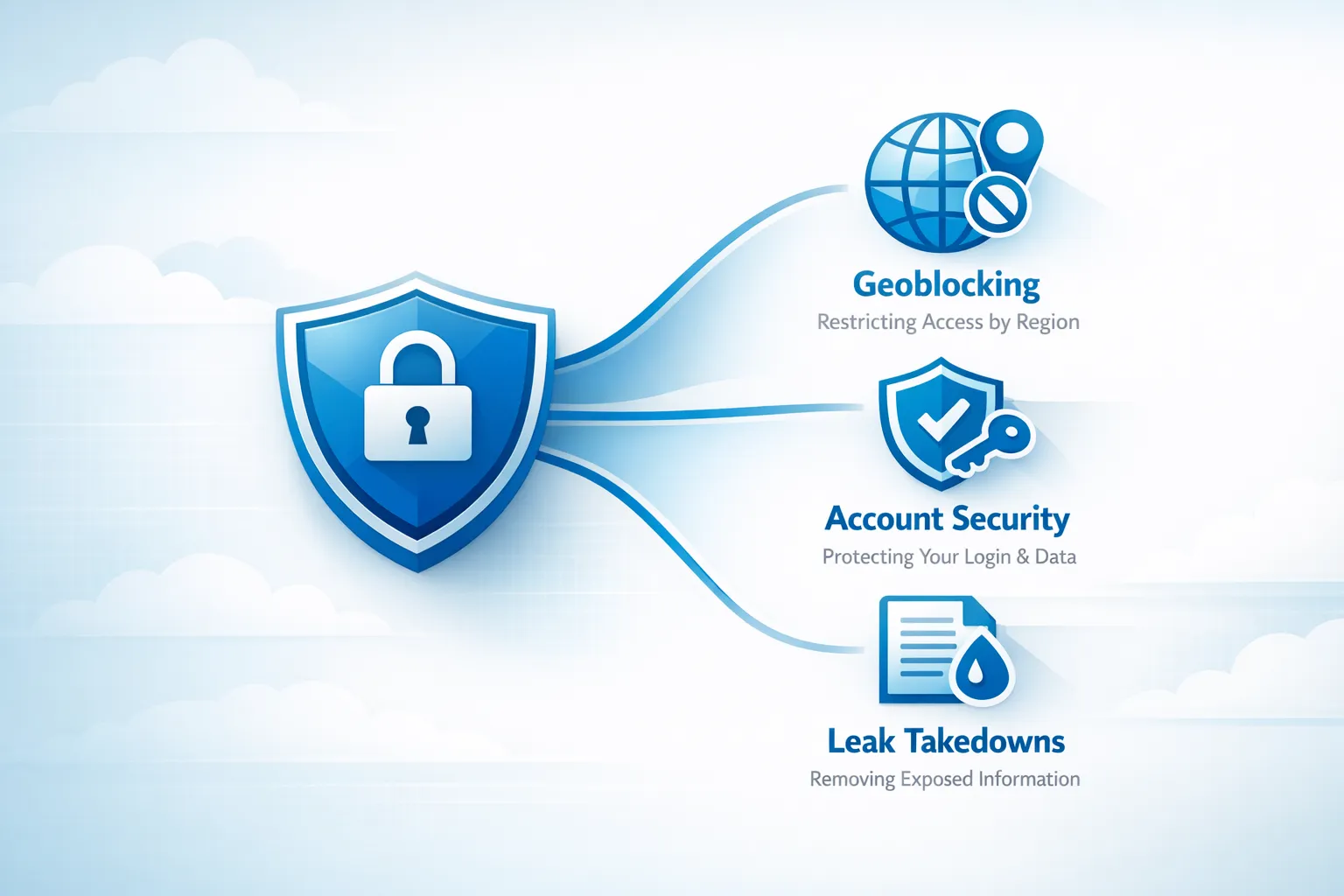
Geoblocking helps with on-platform visibility. It does not handle content theft or leak distribution.
Basic leak and repost protection habits
- Watermark your content (subtle but visible).
- Keep a consistent DMCA takedown routine if your content is reposted.
- Avoid sending high-value content to brand-new subscribers who feel off.
Lookstars supports creators with content leak protection (monitoring + DMCA takedowns) and privacy setup, but if you’re doing this solo, you can still build a simple system.
Disclaimer: This is educational, not legal advice. Laws and platform policies can change. If you need legal help, consult a qualified professional.
Account security basics (don’t skip these)
- Use a unique, strong password.
- Enable two-factor authentication if available.
- Don’t share logins with “helpers” without clear contracts and access controls.
If you’re considering outsourcing, read this first so you don’t hand your account to the wrong person:
A copy-paste script for fans who can’t access your page (without overexplaining)
Sometimes a genuine fan will message you on social media like “Your page won’t open for me.” If you’ve geoblocked their location, you do not owe them details.
Here are two options that keep it polite and firm:
Option A (short and confident):
“Hey love, I have some regions blocked for privacy, so access can be limited depending on location. Thank you for understanding 💗”
Option B (redirect to safe funnel):
“Hi babe! Some locations are restricted on my end for privacy. If you want, follow my page here and I’ll keep you posted on my content drops 💕”
Notice what’s missing: instructions on bypassing. If you set a boundary, keep it a boundary.
If you want help: what a good agency should set up for privacy
Whether you work with an agency or a freelancer, you want someone who treats privacy like an operating system, not a one-time toggle.
Use this evaluation checklist:
- They help you choose a country/state block list based on your actual risk zones.
- They have a process for leak monitoring and takedowns.
- They help with account security setup (not just marketing).
- They can explain who has access to your account and how that access is controlled.
- They don’t dismiss your privacy concerns as “paranoia.”
For more on what legitimate management looks like, compare it with this breakdown:
How Lookstars supports creators who need privacy and growth
Lookstars is an OnlyFans management agency focused on helping creators grow while protecting their privacy. Depending on your needs, that can include:
- Country blocking and security setup (so your boundaries are real, not vibes)
- Content leak protection (monitoring + DMCA takedowns)
- Marketing and fan growth across platforms
- 24/7 fan chatting so you’re not online at risky hours or burning out
If you want to stay anonymous and still grow consistently, you can apply here: Lookstars Agency.
Bottom line
If you’re feeling anxious about being discovered, geoblocking is one of the best “do this today” actions because it’s fast and usually easy.
Just remember: the creators who stay safest long-term treat privacy as a system.
Turn on geoblocking, then tighten your promo identity, secure your account, and plan for leak protection. That’s how you build an OnlyFans business that feels empowering instead of stressful.
Ready to transform your career?
Join hundreds of creators already earning six figures with Lookstars Agency.
Share this article
Best OnlyFans Agency
Europe's Leading OnlyFans Management Agency.
100% Free Ebook
Get our guide and unlock the secrets to OnlyFans success.
100% Free Ebook
Get our guide and unlock the secrets to OnlyFans success.
Free Revenue Calculator & Profile Analyzer
Try them for freeContinue reading...
Am I Attractive Enough for an OnlyFans Agency? The Answer
Can You Ever Fully Delete Your OnlyFans Content? The Reality